Google Search Console is free, it comes directly from Google and it tells you things about your website that no other tool can. Yet most small business owners either haven’t set it up or set it up years ago and never looked at it again.
This post covers how to set up Google Search Console and get it connected in about 20 minutes and, more importantly, what to actually pay attention to once it’s running.
What is and how to set up Google Search Console
It’s a free tool from Google that shows you how your website is performing in search results. Not estimated performance, not inferred data but actual recorded information straight from Google about what people searched for before finding your site, which pages are indexed, whether Google can crawl your site properly and where things are going wrong.
Third-party SEO tools like Semrush are estimates based on crawling your site. Google Search Console is the source. When you see a discrepancy between them, Search Console is always right because it shows what Google actually recorded.
It’s particularly useful right now. Search Console now reports on performance across traditional search results, AI Overviews and AI Mode so you can start to see how your site is performing across the full range of ways Google is serving results in 2026.
Step 1: Go to Search Console and sign in
Go to search.google.com/search-console and sign in with the Google account you use for your business. If you use Google Analytics or Google Business Profile, use the same account. Keeping everything under one account makes life considerably easier.
Step 2: Add your website as a property
Click “Add property” and enter your website URL. You have two options: a domain property or a URL prefix property. A domain property covers all versions of your site (http, https, www and non-www) in one place. That’s the one to choose if you can access your domain’s DNS settings.
If DNS sounds intimidating, the URL prefix option is simpler. Just paste in the exact URL that appears in your browser when you visit your site, including the https://.
Step 3: Verify that you own the site
This is the step that puts people off, but it’s straightforward.
If you’ve already set up Google Analytics using the same Google account, Search Console sometimes verifies automatically. If you see a confirmation screen, you’re done.
If not, the easiest method for a WordPress site is the HTML tag. Google gives you a short piece of code to paste into the head section of your homepage. In WordPress, your SEO plugin handles this without touching any code. In Rank Math, go to General Settings > Webmaster Tools and paste the code into the Google Search Console field. In Yoast, it’s under SEO > General > Webmaster Tools.
Once you’ve verified, it takes a day or two for data to start appearing. Don’t worry if the dashboard looks empty at first.
Step 4: Submit your sitemap
Once verified, submit your sitemap so Google knows exactly what pages your site contains.
Pages from your site can be discovered by Google without submitting a sitemap, but doing so may speed up discovery and lets you monitor sitemap-related information directly in the tool.
If you use Rank Math or Yoast, your sitemap is generated automatically. The URL is usually yourwebsite.com/sitemap_index.xml. In Search Console, go to Sitemaps in the left menu, paste the URL in and click Submit.
What to actually look at
This is where most guides stop being useful. Here’s what matters for a small business website.
The Performance report
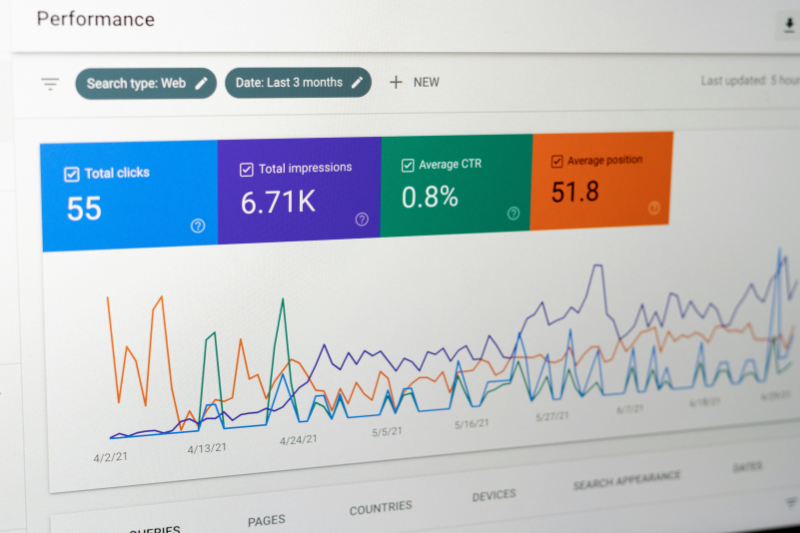
This is the most important section. It shows you which search queries are bringing people to your site, how many times your pages appeared in search results (impressions) and how many people actually clicked through.
A new branded queries filter now automatically separates traffic from people who searched for your business name from traffic that came through genuinely competitive searches. That distinction matters. If most of your clicks come from people already searching your name, your SEO isn’t growing your audience, it’s just serving people who already know you exist.
Look for pages with a lot of impressions but very few clicks. That means you’re showing up in search results but something about your title or meta description isn’t convincing people to visit. Those pages are quick wins – a better title tag often makes a meaningful difference.
The Indexing report
This tells you which pages Google has indexed and which it hasn’t, and crucially, why. If a page isn’t indexed, it won’t appear in search results at all.
Common reasons pages don’t get indexed: they’ve been accidentally set to “noindex” in your SEO plugin, they’re blocked in your robots.txt file, or they’re so thin on content that Google doesn’t consider them worth including. The Indexing report flags all of these.
The Page Experience report
This covers Core Web Vitals, which are Google’s technical measures of how fast and stable your pages feel to a user. An SEO PowerSuite study found a 30% drop in weekly organic clicks when Core Web Vitals moved from green to amber, with recovery when they returned to green. In 2026, pages with poor Core Web Vitals scores are also less likely to appear in AI Overviews.
You don’t need to understand the technical detail behind each metric. Just check whether your pages are marked as “Good”, “Needs improvement” or “Poor” and flag anything that isn’t green to whoever manages your site.
The Insights tab
Search Console Insights is now integrated directly into the main dashboard rather than being a separate tool. It shows trending pages, content gaining or losing visibility and a high-level overview of clicks and impressions in a format that’s much easier to read than the main Performance report.
It’s a good place to start each time you log in, before going deeper into the data.
How often should you check it?
Once a month is enough for most small businesses. Set a recurring reminder, log in and spend 15 minutes looking at:
- Whether your overall clicks and impressions are trending up or down
- Any new pages that aren’t indexed that should be
- Any pages with lots of impressions but very few clicks
- Whether your Core Web Vitals are still showing green
You don’t need to act on everything you see. The goal is to understand what’s happening so that when something does change, such as a traffic drop, a new page not appearing in search, you have context to work from.
One thing worth knowing in 2026
AI Overviews are reducing click-through rates on informational search queries. A site can be ranking well and receiving fewer visits than it used to. The only tool that shows this clearly is Search Console, because it’s the only tool that shows both impressions and clicks at query level. If your traffic has dropped but your rankings haven’t, this is often why.
It doesn’t mean your SEO has failed. It means the search results page has changed around you, and understanding that distinction is important before making any decisions about your site.
If you’d like me to take a look at what Search Console is showing for your site and flag anything worth fixing, that’s something I cover as part of my local SEO service. Sometimes a fresh pair of eyes on the data makes all the difference.